
How to Scan Using Samsung Easy Document Creator?
Is there anyone who knows about how to scan using Samsung Easy Document Creator. I am facing some issues while scanning documents with this, Help me.
 1 Ans
1 Ans- 4 years ago
Scan Using Samsung Easy Document Creator:
Sending scanned copies of personal or official documents, images or books is very common for any professional working from home. In such a situation, I myself found Samsung Easy Document Creator a very user-friendly application serving multiple scanning purposes and supporting a multitude of formats that probably make it the most sought-after scanning application.
Here is a quick guide to scan using Samsung Easy Document Creator. After going through the entire process of scanning through Samsung Easy Document Creator, you would be able to explore its versatile functionality.
Step 1 - Getting the Application Installed
.webp)
- You must download and install the 1.05.87 version of Samsung Easy Document Creator.
- This application is compatible with Windows 7, 8 and 10 and efficiently works in 32-bit and 64-bit operating system.
- The application is available as a freeware software download.
Step 2 – Locating the Application on Your PC or Laptop
.webp)
- Ideally, this application is available on Task Bar
- You should click on the Task Bar and must select Easy Printer Manager.
- If the option is invisible, then you must unhide the icons that are listed on the Task Bar.
Step 3 - Selecting a Printer and Scanning in Your Desired Format
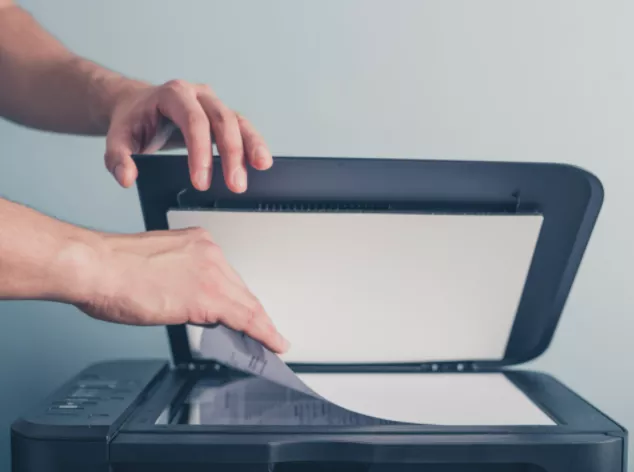
- Choose from a range of printer that you have got installed on your PC or laptop by glancing on the panel located on the left side of Easy Printer Manager.
- Now click on the scan icon under the Quick Links option.
- Then click on Scan option and modify settings in case you are scanning images.
- Now depending on the type of document required to be scanned, click on any one of the options from Last Used Settings, Image Scanning, Document scanning, Text Converting or Book scanning.
Step 4 - Reviewing Pre-Scanned Image, Selecting Size and Source of the Desired Document
- If you scan using Samsung Easy Document Creator, it allows you to see the preview of the scanned document or image. Before clicking on scanning it finally, you must peruse the pre-scanned copy.
- Then you should select the size of the scanned document by clicking on either of the options displayed in the Size drop-down menu on the right side of the preview section.
- Now you can click on either of the option Auto, Flatbed or ADF from the Source drop-down menu available on the right side of the preview section.
Step 5 - Setting Resolution, File Setting and File Format
- Now select the resolution in which you are willing to get the file scanned.
- You must select the required option from File Settings menu available on the right side of the dialogue box.
- You should ensure by selecting the format in which you like the get the document scanned eventually.
Step 6: Finally, if you wish to give effect to scan using Samsung Easy Document Creator after selecting or choosing from all the available options and deciding on the relevant document parameters, you should click on save button to get the required document or image scanned in your desired format and location.
- 2 years ago
 Top Related Question
Related Articles
Top Searches in Samsung Printer
Featured Articles
How to Get Canon Printer Online on MAC?
Sep 29, 2026
How to Fix Printer Printing Horizontal Black Lines?
Sep 28, 2026
How to Scan from HP Printer to Computer Windows 10?
Sep 28, 2026
Ricoh Printer Stuck on Processing
Sep 29, 2026
Brother Printer Only Printing in Black and White
Sep 29, 2026
How to Clean Kodak Printhead?
Sep 29, 2026
How to Install Lexmark Printer to Computer Without CD?
Sep 28, 2026
Why My Samsung Printer is Not Printing Clearly?
Sep 28, 2026
Top Questions
Why Won't My Canon Printer Print after Changing an Ink Cartridge?
Oct 7, 2020
How do I Fix a Canon Printer 1403 Error?
Dec 30, 2020
How do I Connect My Canon MG3050 Printer to WiFi?
Mar 30, 2021
How to Change Printer from Offline to Online Canon?
Nov 27, 2020
How to Turn My Ricoh Printer Online from Offline?
Feb 20, 2021
Brother MFC Printer Won't Print Black Despite Full Ink Cartridges
Nov 7, 2020
How to Fix Epson Printer Filter Failed or Stopped on Mac Error?
Dec 7, 2021
How do You Get a Lexmark Printer Back Online?
Sep 29, 2020